
Vehicle Inspections
The Vehicle Inspection Module allows an agency to document the physical inspection of their Vehicles and automatically report any deficiencies.
To begin an inspection Click New => Vehicle Inspection.

Select the Vehicle you are inspecting.

Optionally, select a custom inspection template by clicking the arrow.
Click Start Vehicle Inspection
Enter the current vehicle mileage (optional - your agency may not collect mileage)
If your agency collects engine hours, enter the current engine hours.

Scroll through the remainder of the Inspection, checking off the items listed within each section which are present and/or in good working order.
Note any deficiencies / issues by leaving that items checkbox unchecked. Then enter a short description of the issue into the narrative field.
Save or Complete the Inspection (See description of each option below)
In addition to check boxes, some agencies may choose to have one or more free form text fields within each section. These text fields should be filled out as required by your agency.
Save Inspection
If you need to pause during the inspection, you may click Save Inspection. This saves the inspection and takes you back to the dashboard. Later, when you are ready to continue the inspection, re-launch the inspection from the dashboard.


Complete Inspection
When you have completed your inspection and want to send it in for approval, click Complete.
Workflow (Optional)
Most agencies begin using workflow, but once personnel are familiar with the process, eliminate the need for supervisory workflow.
If workflow is enabled for your agency:
Once an employee clicks Complete, the inspection is sent to the supervisor approval queue.
The proper supervisor will see the inspection waiting for approval on their dashboard.

The supervisor clicks on the inspection to begin the approval process.

The supervisor reviews the submitted inspection and has three options.
- Reject - sends the inspection back to the employee for correction.
- Edit - allows the supervisor to edit the inspection without sending it back to the employee.
- Approve - approves the inspection and advances it to the next step in the workflow process.
Rejected Inspection
If an inspection is rejected it will be visible on the dashboard of the employee who submitted the inspection. The employee will also be notified via email about the rejected inspection
The employee will make the proper changes and complete the inspection sending it back into workflow for the supervisor to approve.
Review (Optional)
If your agency uses the Review process, upon clicking Complete /Approve, you are shown a review page where you optionally select if:
- A work order is created - YES by default
- An email is sent out - YES by default

Status (Optional)
If your agency also tracks vehicle status, and has that feature active for inspections, you will see a form (above) allowing you to pace a vehicle out of service.
Next, click Complete / Approve Inspection.
Automation After Approval
The system will create work order(s) and send out email(s) based upon this inspection.
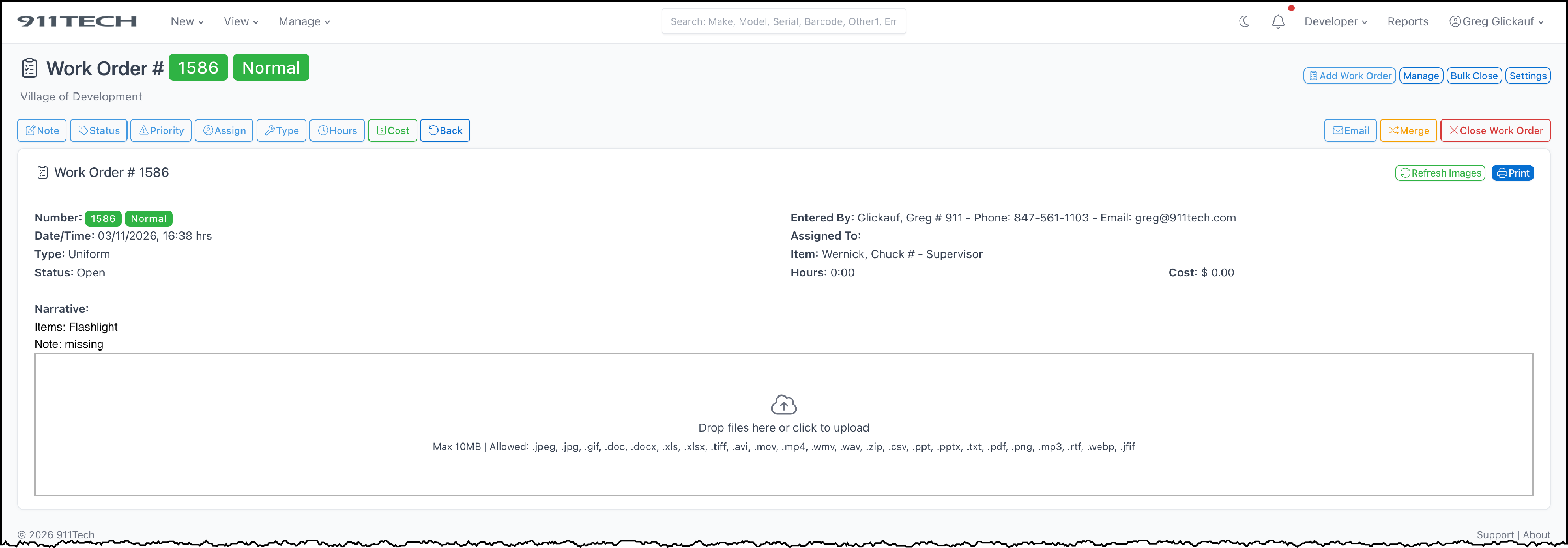
Example Work Order
Based upon this inspection the following work order would have been created.
Example Email
Based upon this inspection the following email would have been sent out to the proper personnel.
