
Create a Foot Pursuit report
Use the Foot Pursuit report to document a pursuit from the primary officer’s perspective. Record the officers and subjects involved, the starting and ending locations, conditions, distance and duration, deployment information, supporting files, and a complete narrative before routing the report for review.
Before you begin
Gather the case number, incident time, participating personnel, subject information, start and end locations, environmental conditions, distance and duration, K9 or drone deployment information, termination details, video, attachments, and narrative.
Start the report
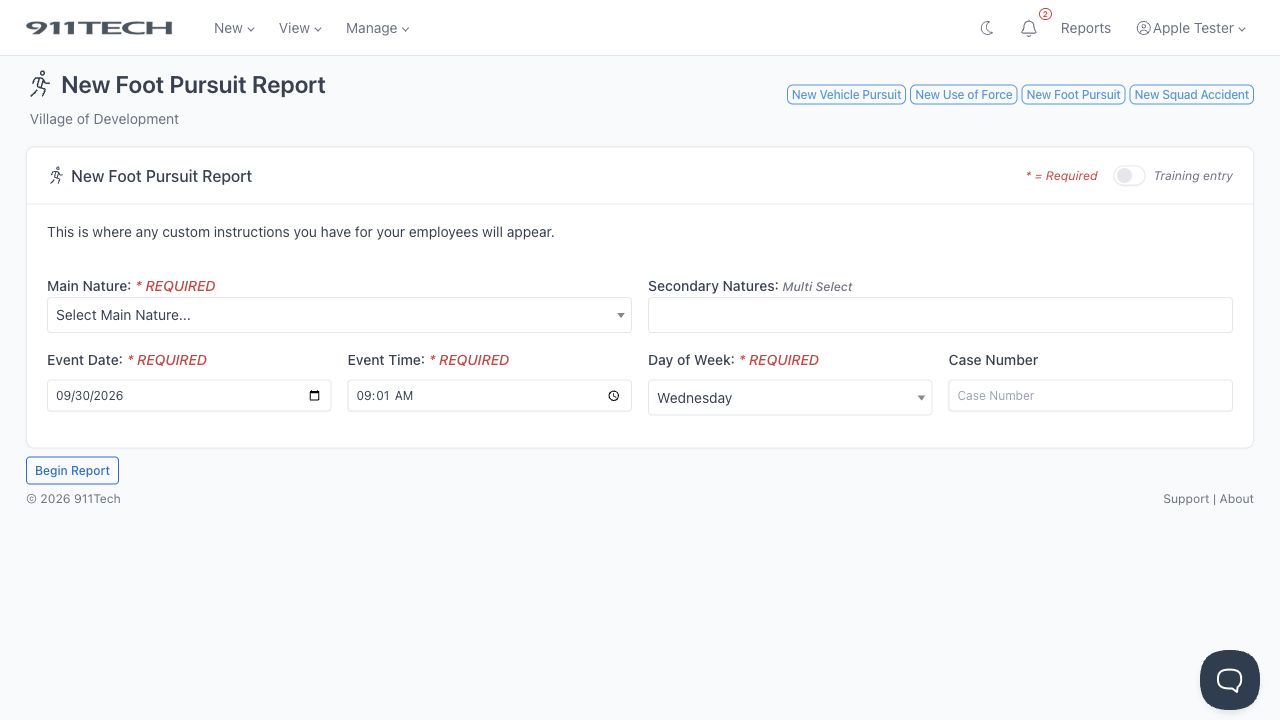
- Open New in the top navigation.
- Select New Foot Pursuit.
- Leave Training entry off for a real report.
- Select the main nature and any secondary natures.
- Confirm the event date, event time, and day of week.
- Enter the case number.
- Select Begin Report.
Complete the report sections
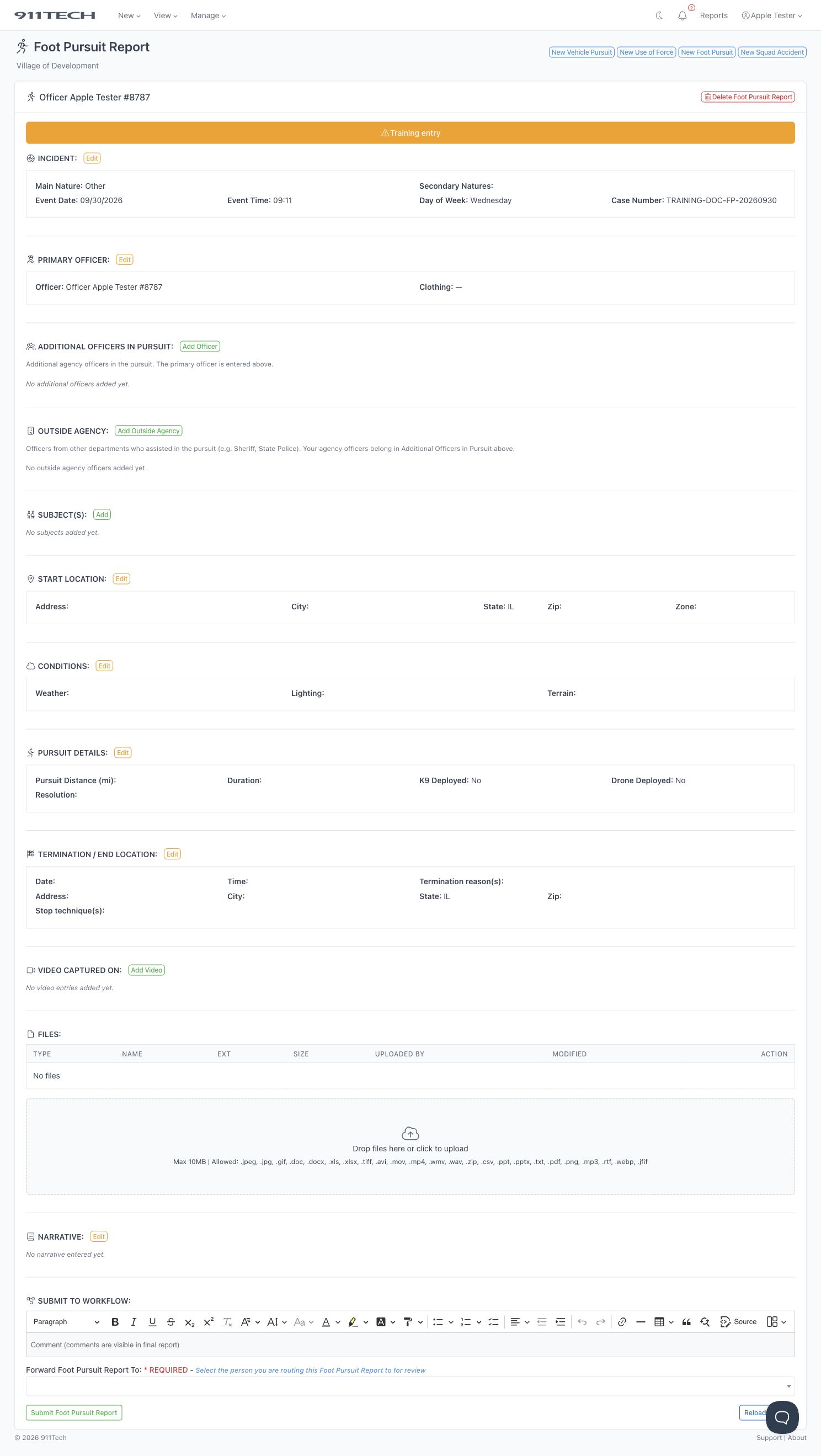
Select Edit beside each section, enter the available information, and select Done to return to the report overview.
Incident and primary officer
Review the incident information. In Primary Officer, confirm the officer and clothing information.
Additional officers and outside agencies
- Use Add Officer for additional personnel from your agency.
- Use Add Outside Agency for officers from another department.
Subjects and start location
Use Add under Subjects for each person pursued. Enter the starting address, city, state, ZIP code, and zone.
Conditions
Record the weather, lighting, and terrain.
Pursuit details
Enter the pursuit distance and duration, indicate whether a K9 or drone was deployed, and select the applicable resolution.
Termination and end location
Record the ending date and time, the reason the pursuit terminated, the end address, city, state, ZIP code, and any stop techniques used.
Video, files, and narrative
Add every video source, upload supporting files, and enter a chronological narrative that explains why the pursuit began, the route and officer actions, significant observations, and how it ended.
Route the report for review
- Review each section for accuracy.
- Add an optional workflow comment when the reviewer needs context.
- Select the reviewer in Forward Foot Pursuit Report To.
- Select Submit Foot Pursuit Report.
Use Exit to leave without submitting or Reload to refresh the report.
Important reminders
- Add each officer and subject separately.
- Distinguish agency personnel from outside-agency personnel.
- Include K9 and drone deployment information even when neither was used.
- Do not select Delete Foot Pursuit Report unless you intend to remove the draft.