
Find and review Overnight Parking requests
The Overnight Parking card on the dashboard gives officers quick access to active requests during the overnight parking ban. Use the card to filter the visible requests, open a request, or move to the full Overnight Parking page for additional search and status options.
Use the dashboard card
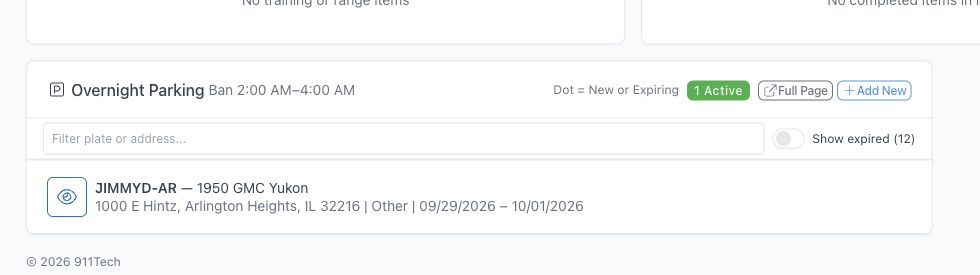
The dashboard card shows the local parking-ban hours and the number of active requests.
- Locate Overnight Parking near the bottom of the dashboard.
- Review the active count at the top of the card.
- Enter a plate or address in the filter field to narrow the visible card entries.
- Turn on Show expired when you also need to see expired requests.
- Select the eye icon or the request row to open its details.
The dot indicator identifies a request that is new or nearing expiration.
Open the full request list
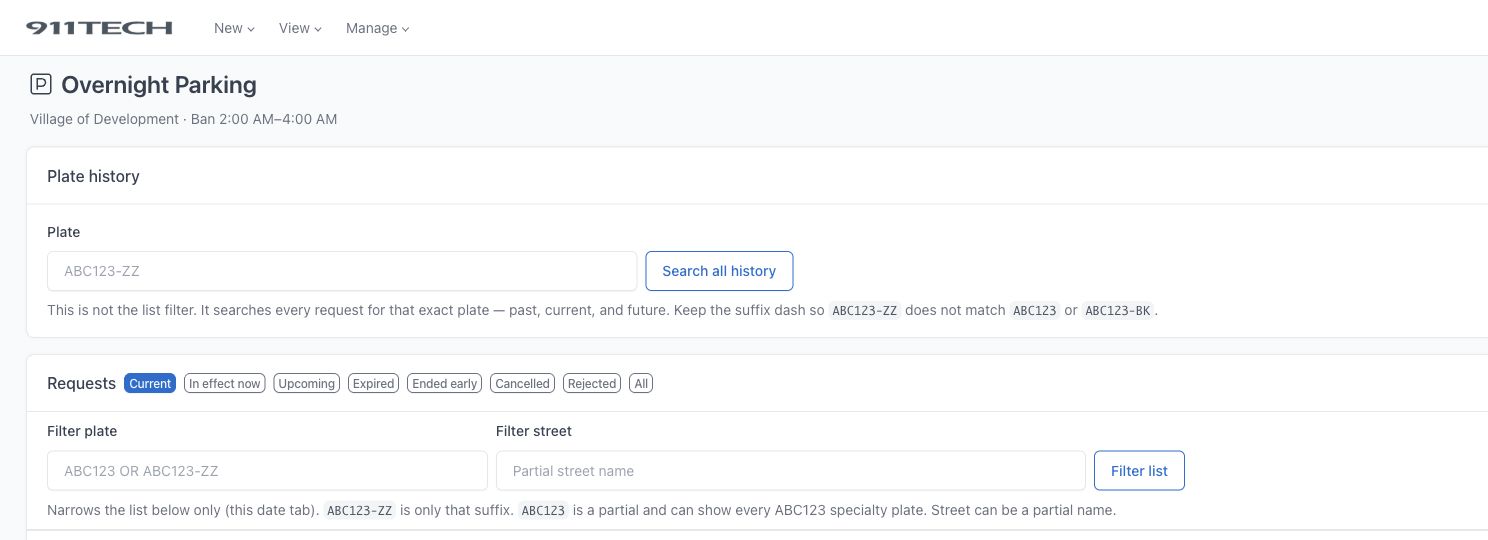
Select Full Page on the dashboard card. The Overnight Parking page provides two different search tools:
- Plate history searches every past, current, and future request for one exact plate.
- Filter plate and Filter street narrow the requests in the selected status tab.
Keep the suffix dash when searching a specialty plate. For example, ABC123-ZZ , ABC123 , and ABC123-BK are treated as different exact plates by the plate-history search.
Use the status tabs to display:
- Current
- In effect now
- Upcoming
- Expired
- Ended early
- Cancelled
- Rejected
- All
Review a request
Select View for the applicable request. The request page displays:
- Tracking number and current status
- Address and requested dates
- Reason, requester contact information, and notes
- Each vehicle’s plate, state, year, make, model, and color
- A mapped location when coordinates are available
- Submission information
- Complete history for the plate
- Other requests at the same or a similar address
Review plate history
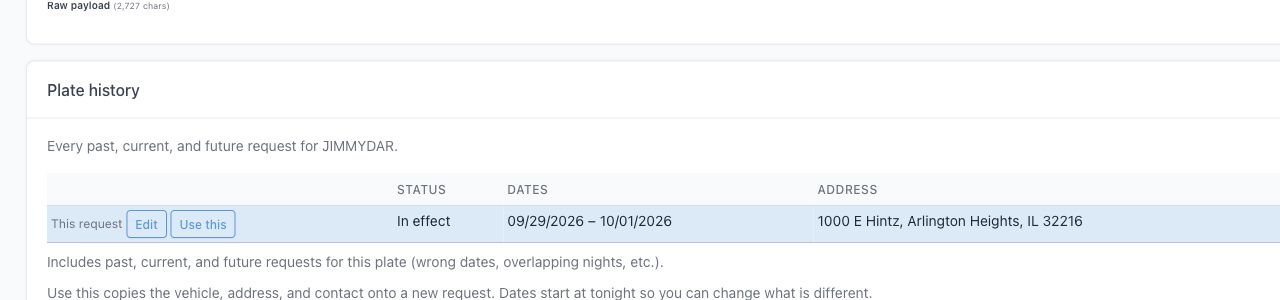
Plate history includes past, current, and future requests for the plate, including requests with incorrect or overlapping dates.
- Select Edit to update that request.
- Select Use this to start a new request with the vehicle, address, and contact information copied forward. The dates begin with tonight’s parking period so you can change what is different.
Other actions on the request page
Depending on your access, the request page may also allow you to:
- Email an approval to the requester
- End the request early
- Cancel the request
- Open the location map
Ending early, cancelling, and emailing change the request or communicate externally. Confirm the request and recipient before using those actions.